
AI Tools
Claude for Chrome: How to Use Claude Directly in Your Browser
Published on July 16, 2026
Most of the workday still happens inside a browser tab - reading, comparing, filling in forms, clicking through the same multi-step flows again and again. Claude for Chrome puts Claude directly into that browser, so it can read what's on the page with you and, when you let it, act on it too. Here's what it actually is, how to get it running, and what it looks like in practice - with real screenshots, not mockups.

What Is Claude for Chrome?
Claude for Chrome is Anthropic's official browser extension that brings Claude into a sidebar next to whatever page you're on. It works in two modes:
- Assistant mode: Claude can see and discuss the page you're looking at - summarizing an article, explaining a table, or answering questions about the content in front of you, without you having to copy-paste anything.
- Agent mode: with your permission, Claude can click, scroll, type, and navigate on your behalf to complete multi-step tasks - the same "computer use" capability behind Claude Code, applied to the browser you already work in.
As of this writing, Anthropic is still rolling the extension out gradually (it started as a research preview for a subset of plans), so exact availability can shift - check your Claude.ai account settings to see if it's enabled for you yet.
It's not limited to the sidebar, either: Claude Code, Anthropic's command-line coding agent, can also launch and control Claude for Chrome straight from your terminal - clicking, typing, and navigating the browser for you as part of a CLI command, not just from the extension's UI. That means a browser task can be one scripted step inside a larger automated workflow instead of something you have to trigger by hand.
How to Install Claude for Chrome
- Make sure you have an active Claude.ai account (Claude for Chrome has been rolling out progressively across plans).
- In Claude.ai, open Settings → Claude for Chrome, or search "Claude for Chrome" directly in the Chrome Web Store.
- Click Add to Chrome and confirm the permissions prompt.
- Pin the extension to your toolbar and sign in with your Claude account.
- Open the sidebar on any page and grant it access to that specific site when asked - access is scoped per site, not "everything, always."
A Real Example: Getting a Same-Day News Briefing
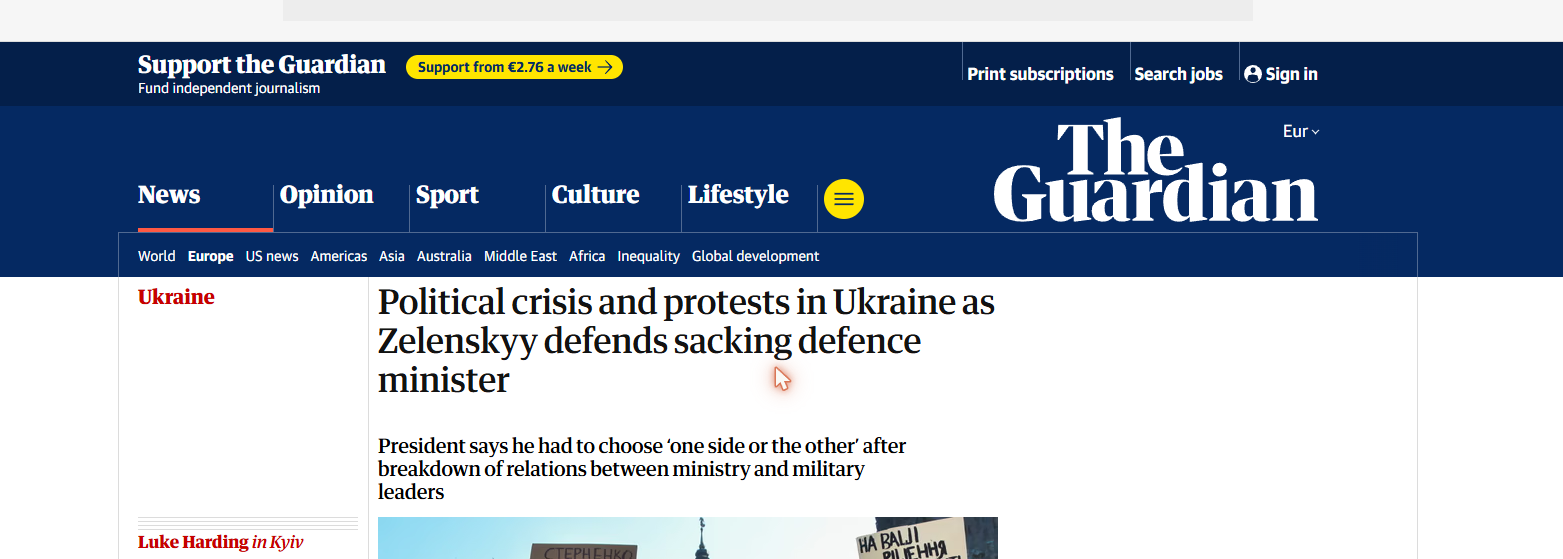
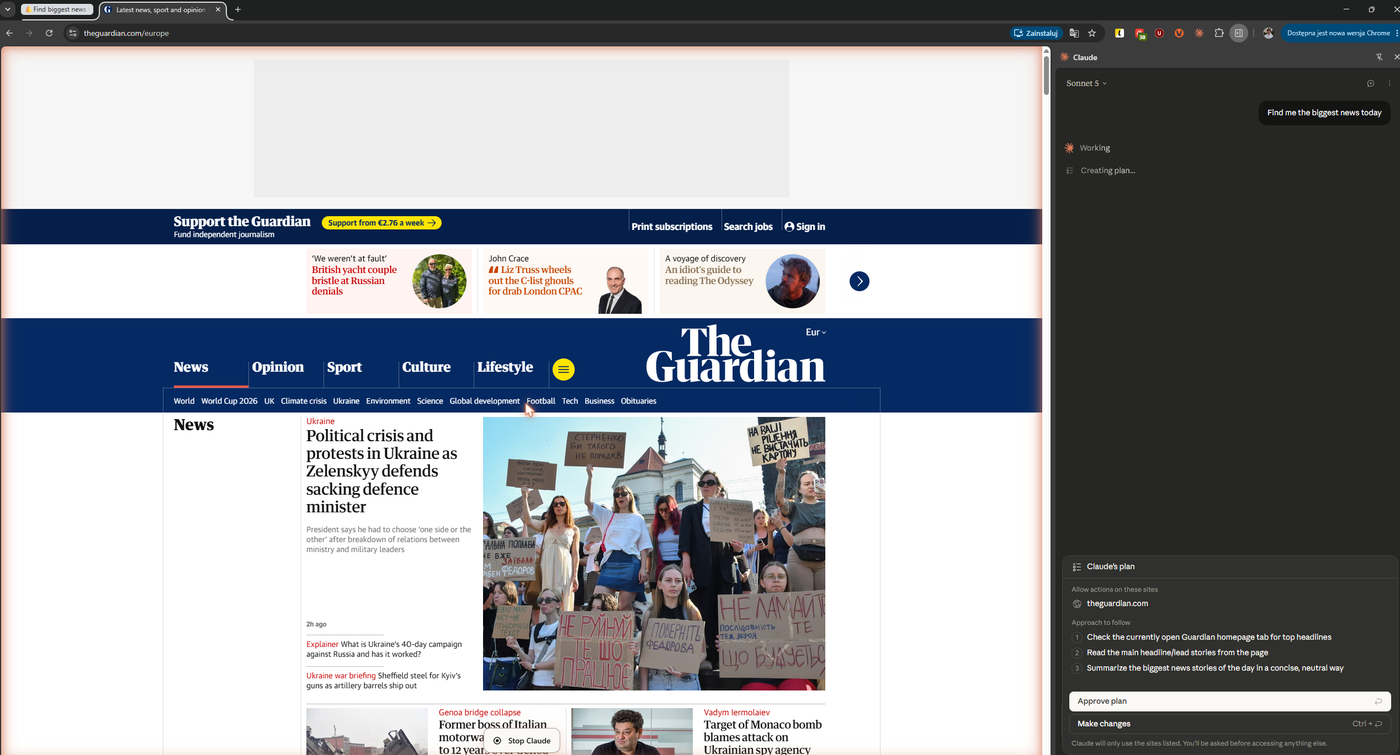
Rather than describe this in the abstract, here's an actual run, start to finish. We opened The Guardian's homepage and typed one line into the Claude sidebar: "Find me the biggest news today."
Before touching anything, Claude proposes a plan and asks for approval: which site it needs access to, and the exact steps it intends to take. Nothing happens until you approve it - or edit the plan first.
Two steps later - reading the homepage, then reading the lead stories - Claude hands back a structured, readable summary of the day's top stories, pulled straight from the page it was looking at rather than a generic web search:

That's the whole loop: ask in plain language, review and approve the plan, get a grounded answer sourced from the actual page - no manual copy-pasting in either direction.
A Second Example: Building a Gmail Filter
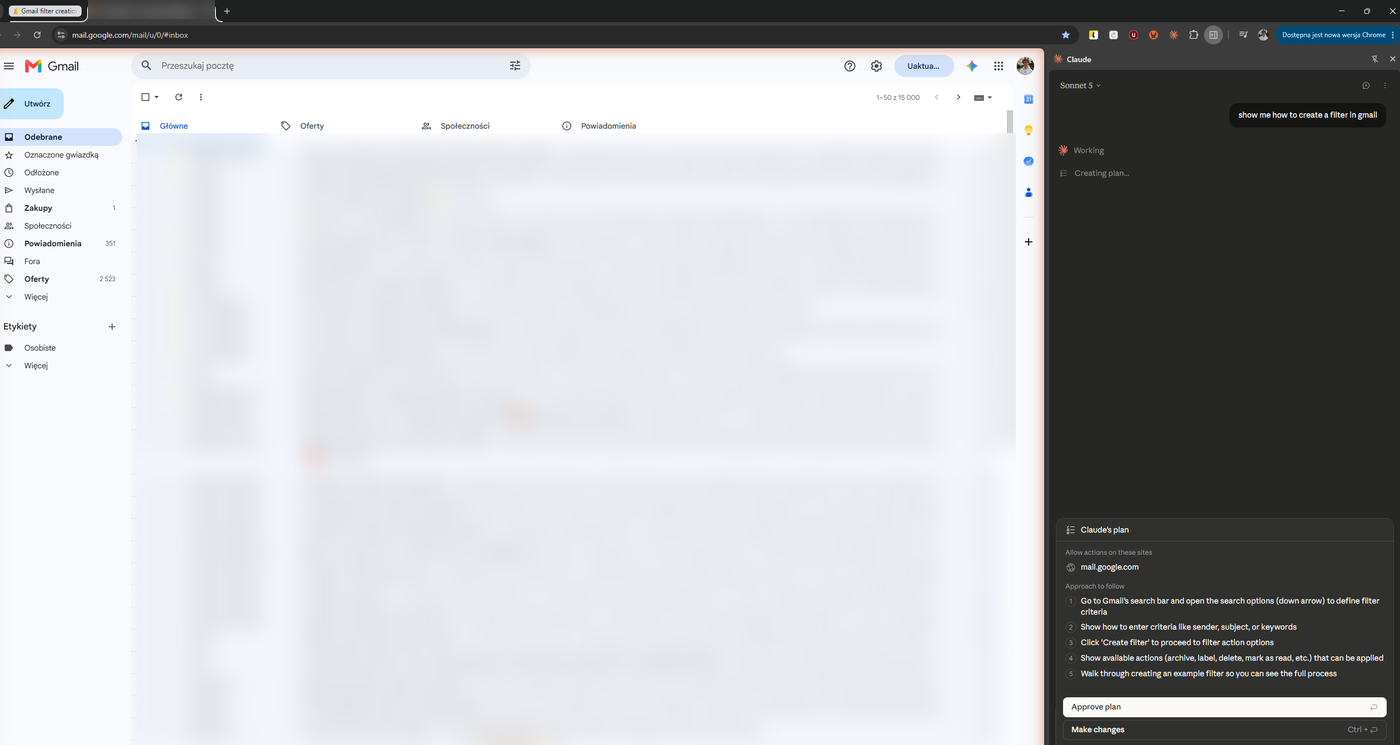
Here's a more hands-on task: we opened Gmail and asked, "show me how to create a filter in gmail." As before, Claude proposed a plan first - scoped to mail.google.com only - laying out the steps it would walk through before touching anything.
It then opened Gmail's advanced search panel and started filling in filter criteria (email inbox contents blurred here for privacy):
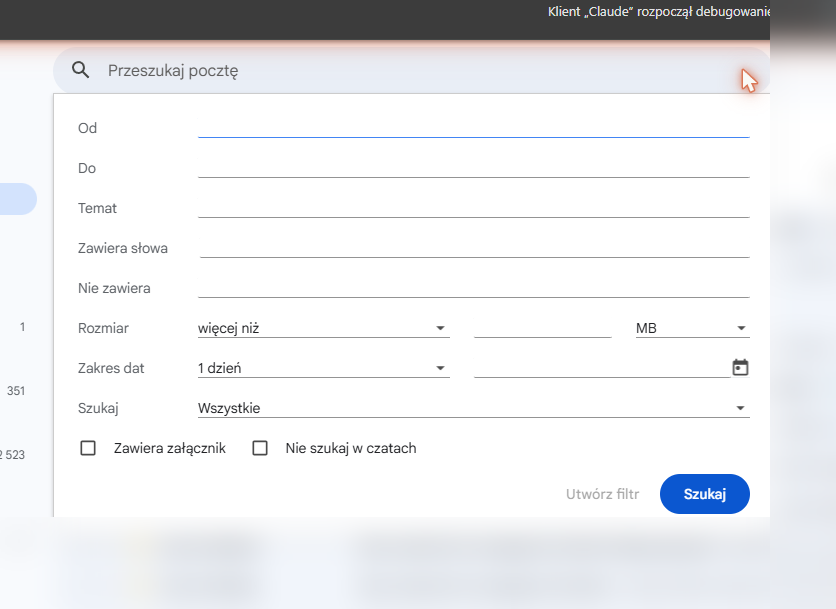
...and walked through to the resulting filter actions - archive, label, forward, delete, and so on - the exact screen you'd see setting one up by hand, just reached without clicking through it yourself:
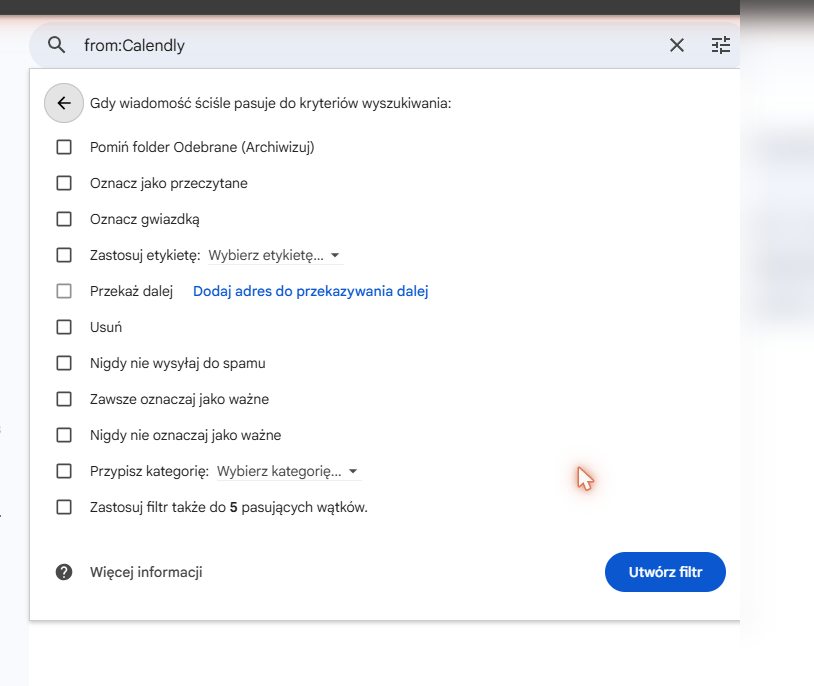
Same pattern as the news example: a plain-language request, a scoped plan you approve first, then Claude working through your own UI instead of you having to remember where Gmail hides its filter options.
More Ways to Use It
- Filling out repetitive forms: give Claude the data once and let it complete a multi-field form for you, checking in before it submits anything.
- Comparing across open tabs: ask Claude to pull the same detail (a price, a spec, a policy) from several tabs and lay them side by side.
- Working through a multi-step web app: navigating a CRM or admin UI to update a record, following the same click-path you'd otherwise do by hand.
- Research across multiple sources: have Claude open and read through several reference pages and pull together one combined answer instead of you tab-hopping.
A Word on Safety
Agent mode is powerful precisely because it can act, not just read - which means the same rules that apply to any AI tool with access to your browser apply here too. Notice, in the plan-approval screenshot above, exactly how narrow the scope was: one site, three steps, nothing else. Don't grant it broader access on sites holding sensitive company or customer data unless your organization has explicitly approved that use, and always review the plan before approving it. This is exactly the kind of practical judgment call we build into our AI Enablement training.
Conclusion
Claude for Chrome is a good example of where AI assistants are headed: less "open a separate chat window," more "help me finish what I'm already doing, in the tool I'm already using." Whether it's worth turning on for your team - and how to use it safely once it's on - is exactly the kind of question we cover in our AI training sessions.
Want to See What Else AI Can Do for Your Team?
Get in touch and we'll show you practical, safe ways to put tools like Claude to work in your daily processes.
Talk to Us About AI TrainingKeep reading
Salesforce
Salesforce Change Alerts in Nine Chat Apps: Slack to Telegram
Org Radar now sends Salesforce Setup changes to Slack, Teams, Google Chat, Zoom, Webex, Mattermost, Rocket.Chat, Discord and Telegram. What each one needs.
Salesforce
One Checkbox in Production: How Salesforce Orgs Break Quietly
A validation rule on Friday, failed orders on Monday. How small manual changes in Salesforce production turn into incidents, and how to see them within the hour.